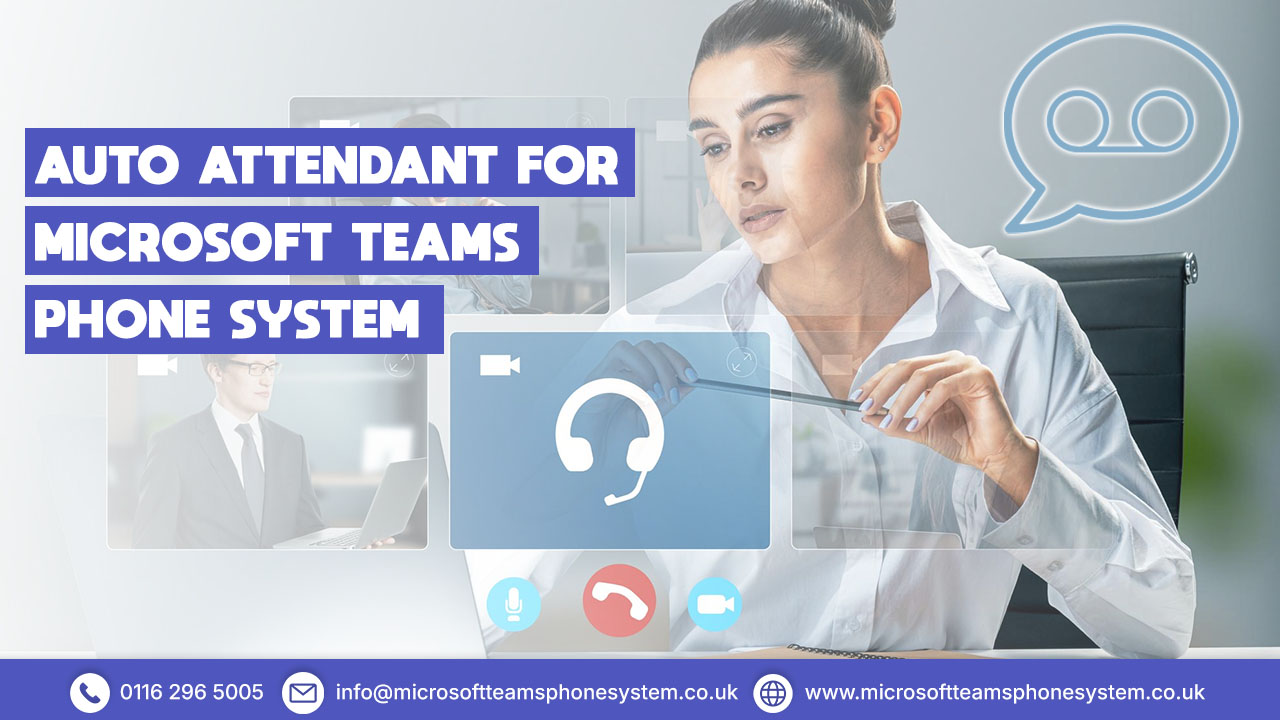
Streamline your business calls with Microsoft Teams Auto Attendant — route calls automatically, set business hours, and offer a professional experience for every caller.
As organisations embrace hybrid work and digital transformation, managing inbound calls efficiently has become essential. Auto Attendant teams functionality provides an intelligent, automated solution that ensures callers reach the right person or department without delay.
The Microsoft Teams Phone System has a lot of great call management capabilities. One of the best ones for organisations that want to improve their customer service and make things easier for receptionists is the auto attendant. Teams auto attendant can change the way your business receives incoming calls, no matter how big or small it is.
📞 Reduced Missed Calls
Automated routing makes sure that your calls reach the right place even when staff are unavailable.
✨ Professional Image
Customised greetings and well-structured menus create a polished first impression.
💰 Cost Savings
Eliminate the need for dedicated reception staff to handle routine call routing.
What Is Microsoft Teams Auto Attendant?
Microsoft Teams Auto Attendant is a virtual receptionist function that is cloud-based. It automatically answers and routes incoming calls depending on rules and menu selections that you set up ahead of time. Think of it as your company’s smart call director, ready to answer calls and direct them to the right place at any time of day or night.
Auto attendant Microsoft Teams works completely within the cloud and works perfectly with your current Microsoft 365 setup. This is different from traditional phone systems that need expensive hardware and complicated setups. This is great for businesses with remote staff, multiple departments, or those who want to manage calls after hours in a professional way.
📞
Reduced Missed Calls
Automated routing ensures calls reach the right place even when staff are unavailable
✨
Professional image
Lorem ipsum dolor sit amet, consectetur adipiscing elit. Ut elit tellus, luctus nec ullamcorper mattis, pulvinar dapibus leo.
💰
Cost Savings
Eliminate the need for dedicated reception staff to handle routine call routing
📈
Scalability
Easily adjust call flows as your business grows or changes
🔗
Integration
Works seamlessly with Teams, Outlook contacts, and company directory
Teams auto attendant is particularly valuable for businesses handling high call volumes, organisations with multiple departments, and companies operating across different time zones where business hours vary.
Key Features of Teams Auto Attendant
Microsoft Teams auto attendant has a full set of functions that can handle almost any call routing situation:
🎙️
Custom Greeting Messages
Record professional greetings and create interactive audio menus that direct callers through alternatives such as "Press 1 for Sales, Press 2 for Support".
🕐
Business Hours Routing
Set up various call flows for conventional business hours, after-hours periods, and public holidays to ensure proper call handling.
🎛️
Multi-level Menu Options
Create complex menu options with multiple levels, letting callers navigate through departmental sub-menus to reach exactly who they need.
📇
Dial by Name/Extension
Offers dial by name so callers can reach staff by saying or typing their name. Directory search automatically looks through your company directory.
📱
Forward External Numbers
Configure forwarding to send calls to mobile phones, landlines, or other outside locations when necessary.
📧
Redirect to Voicemail
Set up voicemail options to record messages when no one is available or redirect to voicemail after a certain timeout.
🎯
Call Queue Integration
Easily link your auto attendant to Teams call queues so that calls may be routed to available agents in sales, support, or other areas.
🌙
After-Hours Messaging
During closed hours, give callers useful information or other ways to get in touch with you to maintain professional communication.
📚
Company Directory Integration
Use your current Teams and Outlook contacts to enable dial by extension and seamless directory searches.
How to Set Up Auto Attendant in Microsoft Teams
It’s easy to learn how to create auto attendant in Teams, but the configuration options give you a lot of freedom. Here’s a step-by-step guide:on setup auto attendant teams:
Go to the Teams Admin Centre
Use your administrator credentials to log in to the Microsoft Teams Admin Center. Go to the Voice section to learn choices for setting up an auto attendant.
Set Up a New Auto Attendant
Go to the Voice menu and choose "Auto attendants." Then, click "Add". You'll be asked to give a name and some basic settings.
Configure Greeting and Menu Options
Record or upload your greeting message that callers will hear first. Then configure menu options, specifying what happens when callers press different numbers.
Set Call Routing Rules
Define where calls should be directed based on caller selections. You can route to individual users, call queues, other auto attendants, external phone numbers, or voicemail.
Define Business Hours
Establish your business hours schedule, specifying operating hours for each day of the week. Create rules for after-hours call handling separately.
Assign Resource Account and Number
Create resource accounts if needed, or use the admin centre to assign a resource account and associate a phone number. This number becomes the main entry point.
Test and Publish
Before going live, thoroughly test your auto attendant by calling the assigned number and navigating through all menu options to verify everything works as expected.
Monitor and Optimise
After deployment, use Teams auto attendant reporting tools and Power BI report dashboards to analyse call patterns and optimise your configuration.
For organisations seeking assistance with the technical implementation, setting up auto attendant in teams can be managed by Microsoft partners who specialise in teams phone auto attendant deployment.
Teams Auto Attendant vs Call Queue - What's the Difference?
When looking into Microsoft Teams call queues and auto attendant services, a popular question is what the difference is between the two. They function together perfectly, but they each have their own purpose:
🤖 Auto Attendant
Auto Attendant acts as your company’s receptionist, receiving callers and making routing decisions. It gives callers menus, figures out what they want, and sends calls to the right places based on business hours, what the caller says, or dial by name teams auto attendant searches.
👥 Call Queue
Call Queue, on the other hand, controls how calls are sent to a group of agents or team members. When a call gets to a queue (maybe through an auto attendant menu choice), the queue takes care of the distribution logic, which can ring agents at the same time, one after the other, or depending on who is available.
The key differences:
- Auto attendant: Handles greeting, menu navigation, and initial routing
- Call queue: Manages distribution among multiple agents
- teams auto attendant vs call queue: Often used together, with auto attendant directing calls to appropriate queues
A typical implementation might have an auto attendant teams greet callers, offer department options, then route sales calls to a Sales call queue and support calls to a Support call queue. This combination provides both intelligent routing and efficient agent distribution.
Advanced Options for Teams Auto Attendant
Beyond basic call routing, Microsoft Teams auto attendant offers sophisticated capabilities for complex business requirements:
📇
Dial by Name and Extension Features
Teams auto attendant dial by name allows callers to reach employees by speaking or typing their name, whilst Teams auto attendant dial by extension lets callers who know an extension number dial directly. The teams auto attendant directory search function searches your organisation's directory automatically.
📊
Reporting and Analytics
Access detailed MS Teams auto attendant reporting through Microsoft's native analytics and third-party tools. Teams auto attendant power bi report dashboards provide insights into call volumes, routing patterns, and system performance. Microsoft Teams auto attendant reporting helps identify bottlenecks and optimisation opportunities.
📱
External Number Forwarding
Configure Teams auto attendant redirect to external number functionality to route calls to mobile phones, home offices, or external support lines. This teams auto attendant forward to cell phone capability is essential for hybrid workforces.
📧
Voicemail Integration
Implement intelligent Microsoft Teams auto attendant voicemail options, including Teams auto attendant redirect to voicemail after timeout periods. Captured messages can be delivered to individual mailboxes or shared team inboxes.
⏱️
Timeout and Repeat Options
Configure Teams auto attendant timeout behaviours to handle situations where callers don't make a selection. Set up the teams auto attendant repeat menu functionality to replay options for callers who need to hear them again.
🔗
Direct Routing Capabilities
For organisations using Teams auto attendant direct routing configurations, additional flexibility exists for integrating with existing telephony infrastructure whilst maintaining auto attendant functionality.
☎️
Operator Options
Implement teams auto attendant operator features that allow callers to press 0 (or another designated key) to reach a live person when automated options don't meet their needs.
Licensing & Requirements
To implement an auto attendant Microsoft Teams, your organisation needs appropriate licensing:
📋
Microsoft 365 Base Licence
A Microsoft 365 or Office 365 subscription that includes Microsoft Teams is required. Most business plans include Teams, though functionality varies by tier.
📞
Teams Phone Licence
Teams auto attendant licence requirements include a Microsoft Teams Phone Standard license for each user who will handle calls. Organisations with Microsoft 365 E5 licensing already have Teams Phone included.
👤
Resource Account Licences
While auto attendants themselves don't consume user licenses, you'll need to assign Microsoft 365 Phone System - Virtual User licences to resource accounts associated with auto attendants. These are typically free for organisations with Teams Phone licences.
🔗
Connectivity Options
Your organisation needs either: Operator Connect service from a certified provider Microsoft Calling Plan Direct Routing configuration connecting to your existing telephony infrastructure The Microsoft Teams phone auto attendant functionality is included with Teams Phone licensing; there's no separate charge for the auto attendant feature itself
Note: The Microsoft Teams phone auto attendant functionality is included with Teams Phone licensing; there’s no separate charge for the auto attendant feature itself.
Why Choose Microsoft Teams Auto Attendant?
Adding auto attendant teams features to your business can be quite helpful for today’s businesses:
✨
Professional Customer Experience
Always greet every caller with professional messages and quick routing, no matter what time it is or who is available.
⚡
Operational Efficiency
Automate common call routing operations to lighten the stress on reception workers, so they can focus on more difficult questions that need human judgment.
💰
Cost Effectiveness
Get rid of the hardware expenditures that come with standard PBX systems and cut down on the number of people needed to handle basic calls.
📈
Adaptability and Growth
You can change call flows, menu options, and routing rules using the admin site without needing technical knowledge or help from outside sources.
🔗
Integration with Microsoft Ecosystem
Use the Teams adoption, Outlook contacts, and Microsoft 365 security tools you already have to make the process smooth.
🏠
Remote Work Enablement
You can route calls to personnel no matter where they are, which works well for both hybrid and remote work setups.
🌍
24/7 Availability
Make sure that callers are handled professionally even when the office is closed, with the right messaging and routing.
📊
Analytics and Insights
Use Teams auto attendant report tools and Power BI dashboards to keep an eye on how calls are coming in and how well the system is working.
Adding the Teams phone auto attendant feature for businesses that already use Microsoft Teams for collaboration can be helpful. It makes the most of your technology investment and makes it easier for customers to get in touch with you.
Frequently Asked Questions
Common questions about Microsoft Teams Auto Attendant:
What is an Auto Attendant in Microsoft Teams?
An auto attendant in Teams is a cloud-based virtual receptionist that automatically answers and routes incoming calls based on pre-configured menus and rules. It provides professional call handling without requiring dedicated reception staff.
How do I set up Auto Attendant in Teams?
To set up auto attendant in Microsoft Teams, access the Teams Admin Centre, navigate to Voice > Auto attendants, create a new auto attendant, configure greetings and menu options, define routing rules, set business hours, assign a resource account and phone number, then test before publishing.
Can I forward calls to external numbers in Teams Auto Attendant?
Yes, Teams auto attendant supports forwarding to external numbers, including mobile phones and landlines. This redirect to external number functionality is configured within the call routing options.
What's the difference between Auto Attendant and Call Queue?
Auto attendant handles initial call greeting and routing based on menus and caller input, whilst the call queue distributes calls among a group of agents. They're often used together — auto attendant directs calls to appropriate call queues for agent distribution.
Do I need a Teams Phone licence for Auto Attendant?
Yes, implementing an auto attendant MS Teams requires Microsoft Teams Phone licensing for users who will handle calls. The auto attendant feature itself is included with Teams Phone; you'll also need free Virtual User licenses for auto attendant resource accounts.
How do I create Auto Attendant using PowerShell?
You can create auto attendant teams PowerShell using cmdlets like New-CsAutoAttendant. This approach is useful for bulk deployments or automated provisioning, though the Teams Admin Centre provides a more user-friendly interface for most scenarios.
Can I use Dial by Name in Teams Auto Attendant?
Yes, Microsoft Teams auto attendant supports dial by name functionality, allowing callers to reach employees by speaking or typing their name. The system searches your organisation's directory automatically.
Ready to Streamline Your Business Communications?
Contact our team to discuss how auto attendant teams functionality can transform your call handling and improve customer experience.
✓ Expert consultation to design your optimal auto attendant solution
✓ Professional implementation and configuration services
✓ Comprehensive training for administrators and users
✓ Ongoing support to ensure continued success
Transform your inbound call handling with Microsoft Teams Auto Attendant today.