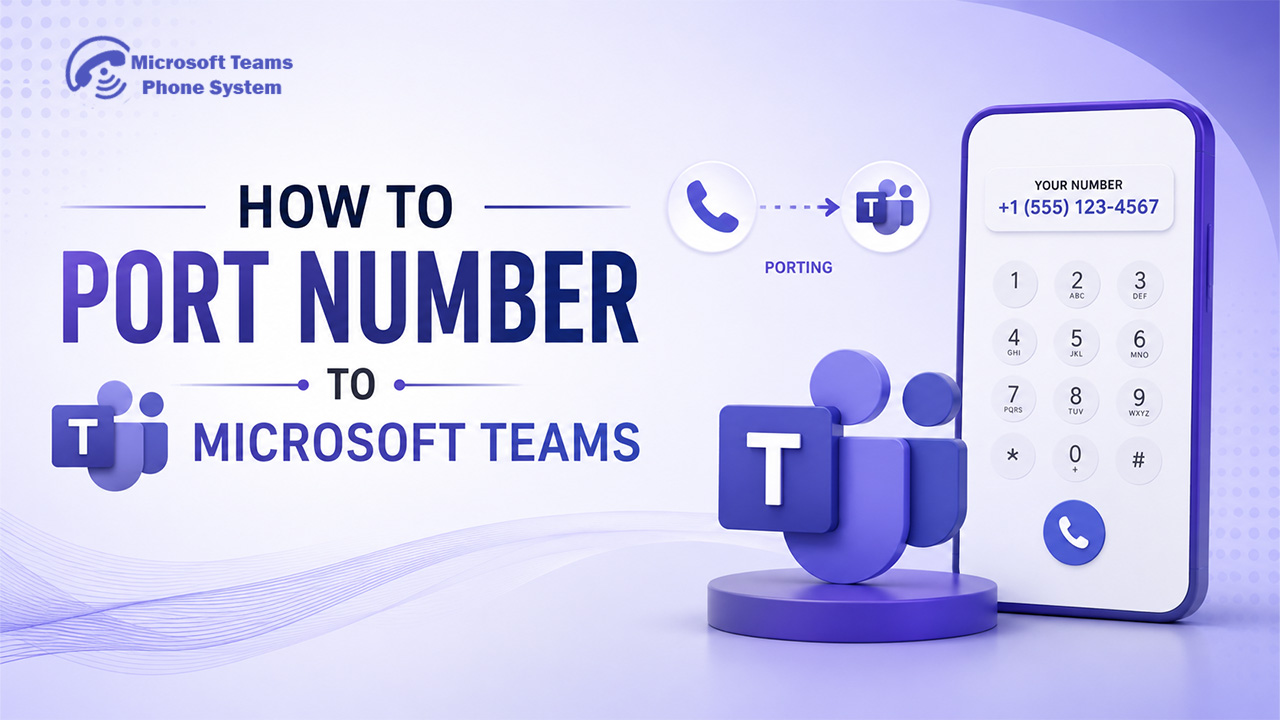
Switching to Microsoft Teams Phone is one of the smartest moves a UK business can make but one question always comes up early: “Can I keep my existing number?” The answer is yes. Porting your phone number to Microsoft Teams means you carry your current business number straight into Teams, without losing the contact identity your clients already know. This guide walks you through everything eligibility, preparation, the step-by-step port order process, timelines, and what to do if something goes wrong.
Key Takeaways
- Keep your existing business number when moving to Teams
- Prepare BTN, LOA, and carrier details before starting
- step by step process
- Avoid common rejection and downtime risks
- Compare Calling Plan, Operator Connect, and Direct Routing
- Test calls and routing properly after cutover
Why UK Businesses Port Their Numbers to Teams
For most UK businesses, a phone number is more than digits it is brand recognition. Customers have it saved. It is printed on business cards, listed on websites, and trusted. Starting fresh with a new number means losing that overnight.
Porting solves this completely. When you port your number to Microsoft Teams, your existing geographic or non-geographic UK number moves across to Teams Phone calls come in exactly as before, just routed through Microsoft’s cloud platform. You get the flexibility of Teams calling without sacrificing continuity.
Beyond number retention, businesses port because Teams consolidates everything calls, meetings, chat, and collaboration into one platform, reducing costs and eliminating the need for a separate phone system.
Keep Your Business Number Without Disruption
Which UK Phone Numbers Can Be Ported to Teams?
Not all number types are eligible. Microsoft Teams Calling Plan supports porting for:
- Geographic numbers — 01 and 02 area codes
- Non-geographic numbers — 03 numbers
- Freephone numbers — 0800 and 0808
- Some premium rate and service numbers — subject to restrictions
Numbers that cannot be ported include certain 070 personal numbers, some 09 numbers, and numbers tied to legacy ISDN services. If your business is currently on an ISDN line, check with your carrier before raising a port order, as ISDN migration dependencies can complicate or block the process.
One term to know: the Billing Telephone Number (BTN) is the primary number on your carrier account used for billing. You’ll need this when completing your port order.
What You Need Before You Start
Preparing thoroughly before you touch the Teams Admin Centre is the single biggest factor in avoiding delays. Have the following ready:
- A Microsoft Teams Phone System licence assigned to your tenant
- An active Calling Plan licence (Domestic, International, or Pay-As-You-Go) — or Direct Routing/Operator Connect if you’re using an alternative connectivity model
- Your current carrier account number (exactly as it appears on your bill)
- The billing address registered with your current provider
- Your Billing Telephone Number (BTN)
- A completed Letter of Authorisation (LOA)
Prepare Your Teams Phone Migration Properly
The Letter of Authorisation (LOA)
The LOA authorises Microsoft to request your number from your existing carrier. Without a correctly completed LOA, your port order will be rejected outright. Microsoft provides official UK-specific LOA templates — use the correct version for your number type, fill it in carefully, and save it as a PDF.
Common mistakes: mismatched business name, incorrect BTN, missing signature. These are the leading causes of rejection.
Costs
Microsoft does not charge for porting. You must have an active Calling Plan licence (a paid Microsoft 365 add-on), and your existing carrier may apply a porting fee or early termination charge depending on your contract terms. Check your agreement before you begin.
How to Port a Phone Number to Microsoft Teams: Step-by-Step
Step 1 – Access the Microsoft Teams Admin Centre
Sign in to the Microsoft Teams Admin Centre at admin.teams.microsoft.com using your Microsoft 365 admin credentials. You need Global Admin or Teams Administrator role permissions to manage phone numbers.
Step 2 – Open the Phone Numbers Section
From the left-hand navigation menu, go to Voice and select Phone numbers. Click Add to begin a new number request, then select Port existing numbers from the options presented.
Step 3 — Create and Submit Your Port Order
The porting wizard will guide you through submission. You will need to:
- Select United Kingdom as your country
- Enter your account number and BTN exactly as they appear on your carrier bill
- Upload your completed LOA document
- Confirm the numbers you wish to port
- Review and submit the order
A single mismatch between your LOA and your carrier records is enough to trigger a rejection and restart the clock.
Step 4 — What Happens to Your Calls During Porting?
During the porting window, your number stays active with your current carrier. Calls continue reaching you as normal. Microsoft coordinates the cutover with your carrier, and the actual switchover happens within a scheduled window. You’ll be notified of the confirmed port date in advance.
One important note on emergency calling: during active migration, brief interruptions to 999 routing are possible. Ensure your team has a backup contact method available during the cutover window, and test emergency calling as soon as the port completes.
⚠️ Do not cancel your existing phone contract until port status shows “Complete” in the Teams Admin Centre.
Cancelling services early can cause a failed port, service disruption, or permanent number loss. Your current provider remains responsible for routing until the cutover is confirmed.
Step 5 — Monitor Your Port Order Status
Track progress in the Teams Admin Centre under Voice > Port orders. Orders move through: Submitted → In Progress → Complete. If Microsoft needs additional information, you’ll receive a notification in the Admin Centre and by email. Respond promptly delays in responding extend the overall timeline.
After cutover, run a test call on each ported number before going live. Check that auto attendants, call queues, and hunt groups are routing correctly.
Understand Realistic Teams Porting Timelines
How Long Does Porting Take in the UK?
Most UK port orders complete within 7 to 14 business days from the date Microsoft validates your submission. The clock starts on validation, not on submission — errors reset the timeline.
Complex cases take longer: porting large batches, numbers tied to ISDN lines, or numbers requiring special carrier coordination can take up to 30 days.
UK Bank Holidays and Port Timelines: Many UK carriers pause port processing during public holidays. Christmas, Easter, and other major bank holidays can add several days to your expected timeline. If you’re planning a migration around these periods, factor in additional buffer time and communicate the expected window to your team.
Calling Plan, Operator Connect, or Direct Routing — Which Is Right for Your Business?
Calling Plan is the most straightforward route and suits most small to mid-sized businesses. Microsoft manages the full PSTN connection end-to-end, without requiring any telephony infrastructure on your side.
Operator Connect sits in the middle a certified UK operator manages the PSTN connection directly within Teams. Porting is handled by the operator rather than Microsoft, and it tends to offer competitive pricing without requiring your own hardware.
Direct Routing connects Teams to your telephony infrastructure via a Session Border Controller (SBC). This suits larger organisations with complex call routing needs, existing carrier contracts they want to retain, or SIP trunk arrangements already in place. Organisations already running SIP trunks often find Direct Routing the more cost-effective path.
Larger organisations frequently prefer Operator Connect or Direct Routing for greater carrier flexibility, lower per-minute costs, and tighter control over call routing. Calling Plan is the recommended starting point for most businesses, but it’s worth getting a comparison before committing.
Why Port Orders Get Rejected — and How to Avoid It
The most common rejection reasons in the UK:
- LOA errors — wrong business name, missing signature, or incorrect BTN
- Account number mismatch — must match your carrier bill exactly, including formatting
- Number ineligibility — number type not supported for porting via Calling Plan
- Active contract restriction — carrier flags an outstanding balance or contract lock
- Incorrect BTN — the most common single cause of failed orders
If your order is rejected, Microsoft will specify the reason in the Admin Centre. Correct the issue, resubmit with updated documentation, and the process restarts. Most rejections are resolved within one or two resubmissions. Partial number porting where only some numbers on an account are moved is possible, but all numbers in a single submission must be on the same carrier account.
FAQ's
Can I port a number to Microsoft Teams without a Calling Plan?
No. You must have an active Microsoft Calling Plan or use Direct Routing or Operator Connect as an alternative connectivity method.
Can I port a mobile number to Microsoft Teams?
Mobile number porting to Teams is not currently supported in the UK via Calling Plan. Mobile numbers require Direct Routing or Operator Connect arrangements.
What is a Billing Telephone Number (BTN)?
The BTN is the primary number on your carrier account used for billing. It is required on your LOA to verify account ownership during the porting process.
How do I check my Microsoft Teams port order status?
Log in to the Teams Admin Centre, navigate to Voice > Port orders, and your current order status will be displayed there.
Is number porting free with Microsoft Teams?
Microsoft does not charge for porting. However, a Calling Plan licence is required, and your existing carrier may apply exit fees.
Final Thoughts
Porting your existing business numbers to Microsoft Teams allows your organisation to modernise communications without losing the contact details your customers already trust. The process itself is usually straightforward, but accuracy matters incorrect BTN details, LOA errors, and carrier restrictions are the most common causes of delays.
For most UK businesses, careful preparation, choosing the right connectivity model, and validating everything before cutover are the keys to a smooth migration. Whether you use Calling Plan, Operator Connect, or Direct Routing, proper planning helps minimise disruption and ensures your Teams Phone deployment goes live successfully.
Get Help Migrating To Microsoft Teams Phone