Managing calls, meetings, messages, and files across different tools is one of the most common frustrations for small businesses. Microsoft Teams brings all of that into one place so your team isn’t constantly jumping between apps just to get basic things done.
With the UK’s PSTN switch-off already in motion, more organisations are rethinking how they handle business calls. Teams has become a sensible option for businesses that want modern communication without bolting on separate VoIP solutions or keeping ageing PBX hardware running.
This guide walks through what Teams actually offers, how different parts of a business use it, and what’s worth thinking about before you roll it out.
Why Small Businesses Are Using Microsoft Teams
The way people work has changed and for most businesses, that change isn’t reversing. Hybrid working is now just how things are, and teams need communication tools that hold up whether staff are in the office, at home, or somewhere in between.
Teams has become a practical answer for businesses tired of managing too many disconnected tools at once.
The Shift Toward Hybrid and Remote Collaboration
For a lot of businesses, remote working went from a temporary fix to a permanent arrangement. Keeping staff connected is one thing making sure the quality of communication doesn’t drop is another challenge entirely.
Teams gives everyone a shared space where conversations, files, and meetings are all in the same place. Most things stay accessible and searchable, so important updates don’t disappear into an inbox nobody checks regularly.
Managing Communication Across Growing Teams
What works for a team of five tends to fall apart at fifteen. Updates get missed. Conversations happen in the wrong places. People repeat work because nobody knew someone else had already started it.
Teams helps by giving different projects, departments, and topics their own dedicated channels. Staff have a clearer place to look for updates. Managers aren’t spending half their day chasing information that should already be easy to find.
What Microsoft Teams Offers Small Businesses
Teams isn’t just a video call tool it pulls together messaging, meetings, file sharing, phone calls, and app connections into one working environment. For businesses currently stitching together Zoom, Slack, and a desk phone system, it replaces a lot of that within Microsoft 365.
Team Chat and Instant Messaging
Long internal email threads waste time. Teams shifts those quick conversations into channels and direct messages, which means inboxes stay cleaner and responses come faster. Staff can tag people, reply within threads, and share files all without touching their email.
Online Meetings and Video Calls
Whether it’s a team catch-up or a client call, Teams handles it without needing another tool. Meetings connect directly with Outlook for scheduling, screens share easily, and sessions can be recorded for anyone who missed them. Background blur helps keep things looking presentable, even from a kitchen table.
File Sharing and Collaboration
Files shared through Teams sit in SharePoint, so the whole team can access and work on them at the same time. No more emailing attachments back and forth, and no more “which version is the right one” moments version history saves automatically.
Business Calling Through Microsoft Teams Phone System
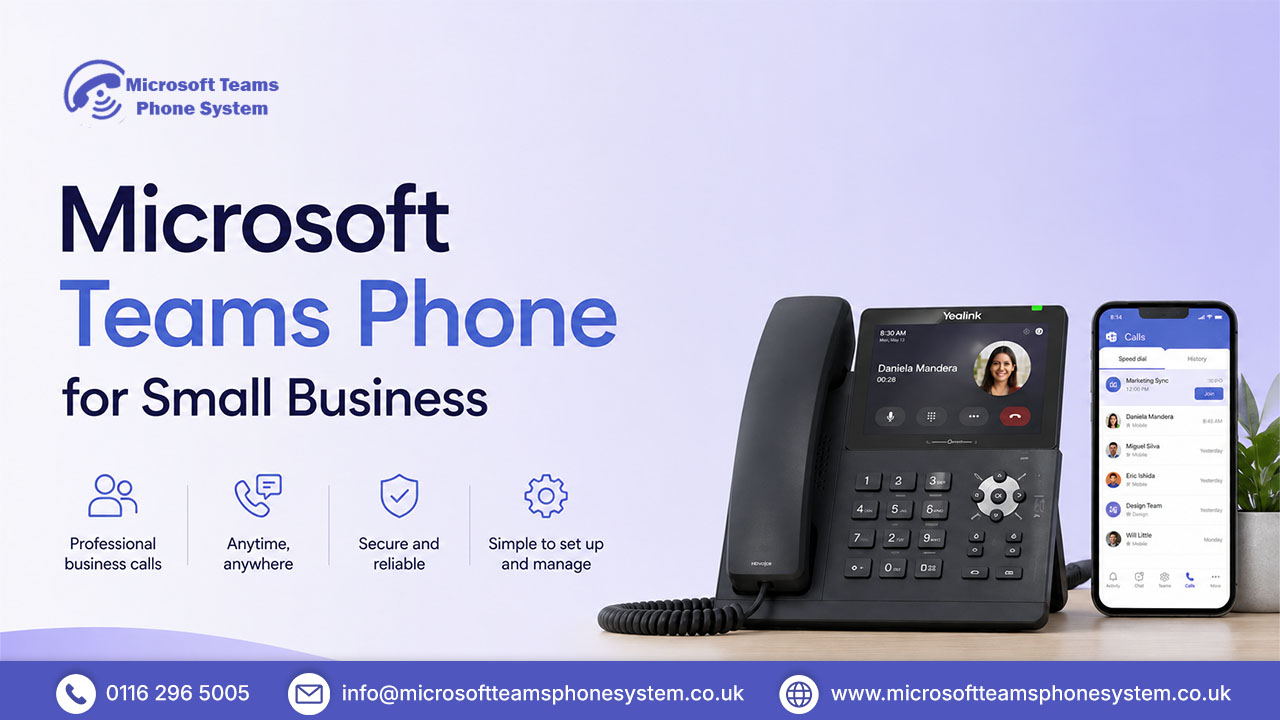
This is where Teams goes beyond just internal communication. A Teams Phone licence lets businesses make and receive calls from outside the organisation straight through the platform, no desk phone needed.
Staff can answer calls on a laptop, mobile, or tablet. Routing, voicemail, transfers, and hold all work the way you’d expect from a proper phone system. For any business looking at VoIP migration or getting ahead of the PSTN switch-off, the teams phone system for business is worth a serious look it can cut or remove the need for traditional on-site phone hardware without bringing in a separate provider.
Integration with Microsoft 365 Apps
If your business already runs on Word, Excel, Outlook, or OneNote, Teams fits in without much friction. Files open and edit inside Teams, calendars connect automatically, and tasks sit in Microsoft Planner no constant switching between tabs and applications.
See how Teams Phone works for your business
Key Benefits of Microsoft Teams for Small Business Teams
Reducing Internal Email Overload
Most inboxes are full of messages that have no business being there quick questions, status checks, meeting confirmations. Teams moves that traffic out of email and into a space that’s actually built for it. Inboxes get quieter, and finding what matters becomes a lot easier.
Improving Team Communication
Structure makes communication work. Without it, important things get buried. Teams keeps different conversations in their own channels so project updates don’t end up mixed in with staff announcements or HR messages.
A sales and support team, for instance, could run separate channels for onboarding new clients, handling internal escalations, and sharing weekly updates rather than digging through email chains that nobody can follow after a week.
Supporting Remote Employees
Remote staff often end up feeling like they’re working alongside a team rather than as part of one. Teams changes that. They can join calls, follow channel conversations, access files, and respond in real time the same way an office-based colleague would.
It keeps people genuinely involved rather than just technically connected.
Keeping Meetings and Conversations Organised
Recorded meetings, notes, and post-call messages all stay stored and searchable. If someone was out sick or needs to check what was agreed in last Tuesday’s call, it’s all there. No memory required, no chasing people for a summary.
Helping Teams Collaborate in Real Time
Two people working on the same document at the same time used to mean version conflicts and overwritten changes. In Teams, multiple people edit the same file simultaneously, comments sit right in the document, and everything updates as it happens.
For businesses where shared documents are part of daily work, it cuts out a lot of unnecessary back-and-forth.
Managing Projects and Shared Files More Efficiently
Files scattered across email attachments, desktop folders, and various shared drives create confusion. In Teams everything is searchable and reachable from any device. Add Microsoft Planner into the mix and you’ve got a clear view of tasks, deadlines, and ownership without paying for a separate project management tool.
Ready to cut tools and simplify communication?
How Different Departments Use Microsoft Teams
Sales and Customer Communication
Sales teams use Teams to stay coordinated between client meetings, share notes quickly, and work on pitches together. With Teams Phone switched on, calls come in and go out through the same platform no separate line, no extra hardware. Everything tied to a client stays in one place.
Internal Operations and Admin Teams
For operations and admin, Teams acts as a central home for the things people need to reference regularly policies, onboarding documents, process guides, company updates. The right people find what they need without having to ask for it every time, which cuts down on repeated questions and keeps information consistent.
Project Coordination and Team Collaboration
Running a project through Teams means all the relevant people, files, tasks, and meeting notes live in one channel. Nothing gets buried in someone’s inbox. Nothing falls through the gap between a Slack message and an email thread. Everything stays together and easy to find.
Find the right setup for your team today
Things to Consider Before Using Microsoft Teams
User Adoption and Training
New platforms always take some getting used to. Staff who’ve worked in email-heavy environments might find the move to channels and threads a bit unfamiliar at first — and without some early guidance, old habits tend to come back quickly.
The good news is Teams isn’t difficult to learn. Microsoft has decent training material available, and a single onboarding session is usually enough for most people to get comfortable with the basics.
Teams Can Feel Overwhelming at First
Open Teams for the first time and there’s a lot staring back at you channels, apps, tabs, notifications, meetings, calls. Without some structure in place from the start, it can quickly become noisy and confusing.
A few simple ground rules go a long way. Agreeing on how channels are named, who can create them, and how notifications are managed makes a real difference to how well Teams actually works day to day.
Microsoft 365 Subscription Requirements
Teams comes included with most Microsoft 365 Business plans, but not every plan unlocks every feature. External calling, for example, needs a Teams Phone licence on top of your existing subscription. Before committing, it’s worth checking your Microsoft 365 licensing options properly especially if the plan is to replace your current business phone system.
Internet Connectivity and Device Setup
Being cloud-based means Teams relies on a decent internet connection. Patchy connectivity will cause problems — dropped calls, slow file loading, laggy video. Most modern devices handle Teams fine, but older machines are worth checking before a full rollout.
Is Microsoft Teams the Right Choice for Your Small Business?
For businesses already on Microsoft 365, Teams is usually the obvious next step. It brings calls, messaging, meetings, and file collaboration together in a way that reduces the number of separate tools you’re paying for and managing.
It grows with the business, works for remote and office-based staff alike, and sits inside an ecosystem most teams already know. Teams for small business isn’t just another communication app used properly, it can replace your phone system, your video tool, your internal messenger, and your file-sharing setup all at once.
If you’re currently comparing it against something like Slack, Zoom, or a traditional PBX system, Teams generally offers more within a familiar environment which tends to mean less training time and quicker buy-in from staff.
Need Help Setting Up Microsoft Teams Phone System?
Using Teams as a full business phone system isn’t complicated but it does need to be set up correctly. The right licences, properly configured call routing, a solid plan for number migration, and staff who actually know how to use the calling features these things matter more than most people expect.
Done right from the start, Teams Phone runs smoothly and delivers real value. Done in a rush, it creates problems that take time to unpick.
Let us handle your Teams Phone setup properly
FAQ's
1. Can a small business use Microsoft Teams as a complete phone system?
Yes a Teams Phone licence added to a qualifying Microsoft 365 plan gives businesses the ability to make and receive external calls entirely through Teams. No desk phones, no separate phone lines. Staff handle calls from whatever device they’re working on, which makes it a practical move for any business preparing for the UK PSTN switch-off or considering a switch to VoIP.
2. Do I need a Microsoft 365 subscription to use Teams for my business?
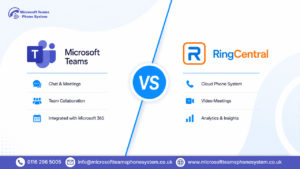
If your company already pays for Microsoft 365 licences, Teams Phone costs a lot less than a standalone RingCentral plan. Starting from scratch, though? The full Microsoft 365 package with Calling Plan and Phone add-on can match or beat RingCentral’s Core plan price.
3. How does Teams help reduce communication costs for growing businesses?
Bringing chat, video, file sharing, and external calls into one environment means fewer separate subscriptions to manage and pay for. Businesses that move to the teams phone system for business typically see savings on traditional phone lines, video conferencing licences, and messaging tools particularly when they’re moving away from older PBX hardware.
4. Is Microsoft Teams secure enough for business use?
It is. Teams is built with multi-factor authentication, admin-level controls, and data encryption as standard. It meets GDPR requirements, which matters for any business handling client data or sensitive financial information. An IT administrator or managed service provider can control security settings centrally.
5. How long does it take to set up Microsoft Teams for a business?
Getting the collaboration side up and running is usually straightforward a day or two in most cases. The phone system side takes longer. Number porting, call routing, and making sure staff are properly trained can add several days depending on how complex the existing setup is. Having a specialist handle it reduces the chances of disruption during the switchover.
Conclusion
Microsoft Teams gives small businesses a practical way to handle calls, meetings, messaging, and file sharing without juggling multiple tools.
With the PSTN switch-off moving forward, moving to a cloud-based phone system isn’t something to keep putting off.
Getting the setup right from the start makes all the difference and that’s where we come in.
Ready to make the switch?